After upgrading from my old Synology DS1511+ (yes, 12 years old) to a new Synology DS423+ (highly recommended!) and getting everything migrated, I wanted to wipe the machine to see if I can sell/donate it. It still works great, but I wanted to hard reset it to prepare it for a new owner. Needless to say it didn’t go according to plan, but figured I’d document it here.
As part of the upgrade, I had disconnected the old NAS to ensure there was nothing more I needed on it. It had been sitting in my office for about 3 weeks and I figured it was time to wipe it. I plugged it in, turned it on…and for some reason I couldn’t hit the website. Meh, no matter, I’ll just reset it via the button.
It reset and I was able to find it via find.synology.com and started the reconfigure of it. All worked well until it got to 95%…and sat there. I opened a new browser window and did the same thing…only to have it get stuck at 95% again. Life happened and so I left it there for awhile only to come back to the same issue. Ugh.
So I restarted it…
I was still unable to access it via the IP I saw it was getting. I also wasn’t able to find it on find.synology.com. So I attempted to find it via the downloadable Synology Assistant. At first I couldn’t find it there either (Yikes!), but then I realized I was crossing VLANS and the traffic was probably being blocked.
Ok, now I can at least see it, and low and behold DSM isn’t installed on it – so much for “95%”.
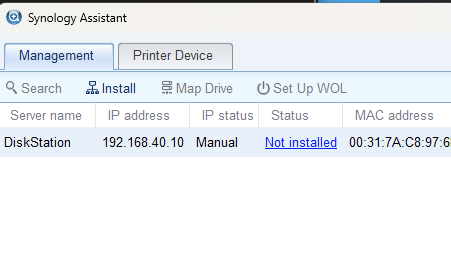
Should be easy at this point, just run the install and tada. Sadly, this is the error I continually received.
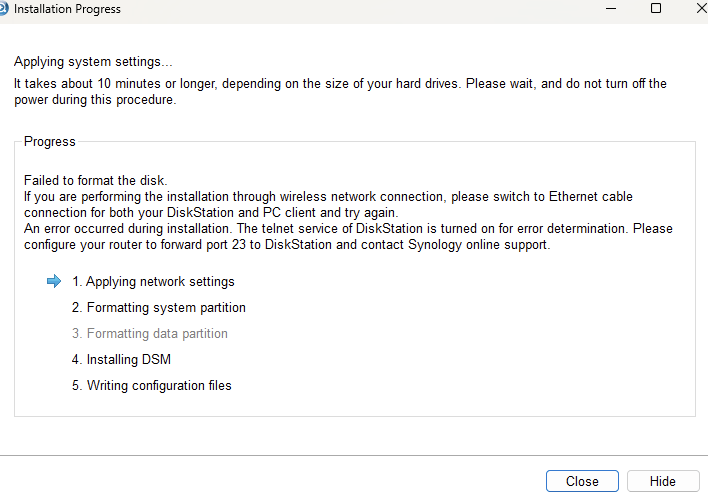
As part of the install process it prompts you to input both the networking configuration and the admin password prior to getting to this point. Seeing the error, I then telnet’ed into the machine, but the password I had set it to never worked.
Some searching later, I found a link that outlined the recovery password.
I’m putting the info below, in case that website goes away and is no longer available.
- 1st character = month in hexadecimal, lower case (1=Jan, … , a=Oct, b=Nov, c=Dec)
- 2-3 = month in decimal, zero padded and starting in 1 (01, 02, 03, …, 11, 12)
- 4 = dash
- 5-6 = day of the month in hex (01, 02 .., 0A, .., 1F)
- 7-8 = greatest common divisor between month and day, zero padded. This is always a number between 01 and 12.
So, let’s say today is October 15, the password would be: a10-0f05 (a = month in hex, 10 = month in dec, 0f = day in hex, 05 = greatest divisor between 10 and 15).
In some cases the clock is also set to factory default… then try the password: 101-0101
Additionally, by default the TZ is in UTC, so account for that in the day.
The install logs are located at /var/log/messages, and cat’ing that I saw the following:
Feb 4 00:26:38 kernel: [ 3393.572368] ata3: SError: { HostInt 10B8B }
Feb 4 00:26:38 kernel: [ 3393.576648] ata3.00: failed command: READ FPDMA QUEUED
Feb 4 00:26:38 kernel: [ 3393.581931] ata3.00: cmd 60/20:00:00:00:00/00:00:00:00:00/40 tag 0 ncq 16384 in
Feb 4 00:26:38 kernel: [ 3393.581934] res 40/00:00:00:00:00/00:00:00:00:00/00 Emask 0x44 (timeout)
Feb 4 00:26:38 kernel: [ 3393.597037] ata3.00: status: { DRDY }
Feb 4 00:26:40 kernel: [ 3396.226915] ata3: limiting SATA link speed to 1.5 Gbps
Feb 4 00:26:42 kernel: [ 3398.543647] ata3.00: disabled
Feb 4 00:26:42 kernel: [ 3398.546712] ata3.00: device reported invalid CHS sector 0
Feb 4 00:26:43 kernel: [ 3398.565298] Descriptor sense data with sense descriptors (in hex):
Feb 4 00:26:43 kernel: [ 3398.594016] end_request: I/O error, dev sdc, sector 0
Feb 4 00:26:43 kernel: [ 3398.599194] Buffer I/O error on device sdc, logical block 0
Feb 4 00:26:43 kernel: [ 3398.604882] Buffer I/O error on device sdc, logical block 1
Feb 4 00:26:43 kernel: [ 3398.610580] Buffer I/O error on device sdc, logical block 2
Feb 4 00:26:43 kernel: [ 3398.610705] sd 2:0:0:0: rejecting I/O to offline device
Feb 4 00:26:43 kernel: [ 3398.610792] sd 2:0:0:0: rejecting I/O to offline device
Feb 4 00:26:43 kernel: [ 3398.610815] sd 2:0:0:0: rejecting I/O to offline device
Feb 4 00:26:43 kernel: [ 3398.610858] sd 2:0:0:0: rejecting I/O to offline device
Feb 4 00:26:43 kernel: [ 3398.638050] Buffer I/O error on device sdc, logical block 3
Feb 4 00:26:43 kernel: [ 3398.672656] sd 2:0:0:0: [sdc] START_STOP FAILED
Feb 4 00:26:43 syslog: format start, szBuf = ^R4VxSYNONI^A^D^A
Feb 4 00:26:43 syslog: ninstaller.c:1314 No found '/.raid_assemble', skip it
Feb 4 00:26:43 syslog: ninstaller.c:2235 CleanPartition=[0], CheckBadblocks=[0]
Feb 4 00:26:43 syslog: ninstaller.c:2296(ErrFHOSTDoFdiskFormat) retv=[0]
Feb 4 00:26:43 syslog: ErrFHOSTTcpResponseCmd: cmd=[2], ulErr=[0]
Feb 4 00:26:43 syslog: query prog, szBuf = ^R4VxSYNONI^A^D^A
Feb 4 00:26:43 syslog: ninstaller.c:2150(ErrFHOSTUpdateMkfsProgress) gInstallStage=[3] ret:-34
Feb 4 00:26:43 syslog: index=[0], ulRate=[8]
Feb 4 00:26:43 syslog: ninstaller.c:2221(ErrFHOSTUpdateMkfsProgress) retv=-34
Feb 4 00:26:43 syslog: ninstaller.c:1423(ErrFHOSTNetInstaller) read socket fail, ret=[0], errno=[2]
Feb 4 00:26:43 syslog: ninstaller.c:1512(ErrFHOSTNetInstaller) retSel=[1] err=(2)[No such file or directory]
Feb 4 00:26:43 syslog: ninstaller.c:1527(ErrFHOSTNetInstaller)
Feb 4 00:26:43 syslog: Return from TcpServer()
Feb 4 00:26:43 kernel: [ 3399.370817] md: md1: set sda2 to auto_remap [0]
Feb 4 00:26:43 kernel: [ 3399.401536] md: md0: set sda1 to auto_remap [0]
Feb 4 00:26:43 syslog: raidtool.c:166 Failed to create RAID '/dev/md0' on ''
Feb 4 00:26:43 syslog: raidtool.c:166 Failed to create RAID '/dev/md1' on ''
Feb 4 00:26:43 syslog: ninstaller.c:2249 szCmd=[/etc/installer.sh -n > /dev/null 2>&1], retv=[1]
Feb 4 00:26:43 syslog: ninstaller.c:2293 retv=[1]
Lots more searching of the some of the errors didn’t really get me any real answer, but I was able to find a forum post that seemed relevant that had a link to the web archive of a website that didn’t exist anymore. While that link was about a failed array, looking at my log files it appeared as if the installer couldn’t create the base RAID for a few drives.
While telnet’ed in, a look at my arrays returned with the following:
>cat /proc/mdstat
Personalities : [linear] [raid0] [raid1] [raid10] [raid6] [raid5] [raid4]
unused devices: <none>
At this point I tried various things with my drives. I removed them all and tried to run the install again, I tried with a single drive, multiple drives and so on to no avail. I even repartitioned one of the drives on my laptop to be “clean” and tried again. Sadly, none of these worked. Finally, with not much else to try, and after looking at the web archive article how they recreated the array, I decided to try and create it manually via the same tool.
Below is the what I ran and the associated output, which gave me something similar to what is shown in that article for those two arrays.
>mdadm -Cf /dev/md0 -n1 -l1 /dev/sda1
>mdadm -CF /dev/md1 -n1 -l1 /dev/sdb1
>cat /proc/mdstat
Personalities : [linear] [raid0] [raid1] [raid10] [raid6] [raid5] [raid4]
md1 : active raid1 sda2[0]
2097088 blocks [5/1] [U____]

md0 : active raid1 sda1[0]
2490176 blocks [5/1] [U____]

unused devices: <none>
I then attempted to run the install again, using the same static IP address as I had done before to keep my telnet connection alive, but no love. Quickly looking at the log and seeing similar issues about disk formatting, I figured it hadn’t worked.
Feb 4 00:36:03 kernel: [ 3958.866984] ata1: device unplugged sstatus 0x0
Feb 4 00:36:03 kernel: [ 3958.871556] ata1: exception Emask 0x10 SAct 0x0 SErr 0x4010000 action 0xe frozen
Feb 4 00:36:03 kernel: [ 3958.879115] ata1: irq_stat 0x00400040, connection status changed
Feb 4 00:36:03 kernel: [ 3958.885282] ata1: SError: { PHYRdyChg DevExch }
Feb 4 00:36:06 kernel: [ 3961.934818] ata1: limiting SATA link speed to 1.5 Gbps
Feb 4 00:36:08 kernel: [ 3963.663357] ata1: device plugged sstatus 0x1
Feb 4 00:36:13 kernel: [ 3969.024334] ata1: link is slow to respond, please be patient (ready=0)
Feb 4 00:36:18 kernel: [ 3973.721782] ata1: COMRESET failed (errno=-16)
Feb 4 00:36:20 kernel: [ 3975.681496] ata1.00: revalidation failed (errno=-19)
Feb 4 00:36:20 kernel: [ 3975.686574] ata1.00: disabled
Feb 4 00:37:03 syslog: format start, szBuf = ^R4VxSYNONI^A^D^A
Feb 4 00:37:03 syslog: ninstaller.c:1314 No found '/.raid_assemble', skip it
Feb 4 00:37:03 syslog: ninstaller.c:2235 CleanPartition=[0], CheckBadblocks=[0]
Feb 4 00:37:03 syslog: ninstaller.c:2296(ErrFHOSTDoFdiskFormat) retv=[0]
Feb 4 00:37:03 syslog: ErrFHOSTTcpResponseCmd: cmd=[2], ulErr=[0]
Feb 4 00:37:03 syslog: query prog, szBuf = ^R4VxSYNONI^A^D^A
Feb 4 00:37:03 syslog: ninstaller.c:2150(ErrFHOSTUpdateMkfsProgress) gInstallStage=[3] ret:-34
Feb 4 00:37:03 syslog: index=[0], ulRate=[9]
Feb 4 00:37:03 syslog: ninstaller.c:2221(ErrFHOSTUpdateMkfsProgress) retv=-34
Feb 4 00:37:03 syslog: ninstaller.c:1423(ErrFHOSTNetInstaller) read socket fail, ret=[0], errno=[2]
Feb 4 00:37:03 syslog: ninstaller.c:1512(ErrFHOSTNetInstaller) retSel=[1] err=(2)[No such file or directory]
Feb 4 00:37:03 syslog: ninstaller.c:1527(ErrFHOSTNetInstaller)
Feb 4 00:37:03 syslog: Return from TcpServer()
Feb 4 00:37:05 syslog: ninstaller.c:1199(ErrFHOSTTcpServer) bind port 9998 error (98):Address already in use
Feb 4 00:37:05 syslog: Return from TcpServer()
At this point, I decided as a last ditch effort to open a ticket with Synology. Knowing this thing was so out of support I put a bit of a cry for help at the beginning. But after creating the ticket, I looked more at the log file and realized it wasn’t complaining about the md0 and md1 anymore, and instead focused on the last item…”Address already in use”. Huh, weird.
So I reran the installation again, but picked the next open IP address and not the one that I had used previously…and to my great surprise it actually worked!
After a few reboots, I’m now back into the web UI! There was no volume that was created, but all 5 of my drives are up and running – which is good because I wanted to properly wipe them anyways. Yay!